

How to Create a Google Maps API Key
If your website has a map, address autocomplete, or geocoding, you need a Google Maps API key. Set it up wrong and the map shows a “For development purposes only” watermark, or worse: an unrestricted key gets scraped and runs up a bill. In this guide, we’ll show you how to get your key set up and secure. Step 1: Create a Google Cloud Project Use one project per client site. Billing, usage, and quotas are scoped to the project. Step 2: Enable Billing Google requires a billing account before any Maps API returns real data. Most small business sites…
If your website has a map, address autocomplete, or geocoding, you need a Google Maps API key. Set it up wrong and the map shows a “For development purposes only” watermark, or worse: an unrestricted key gets scraped and runs up a bill. In this guide, we’ll show you how to get your key set up and secure.
Step 1: Create a Google Cloud Project
- Go to console.cloud.google.com and sign in.
- Click the project picker at the top of the console.
- Click New project.
- Enter a name (use the site or business name), set Location to No organisation if prompted, and click Create.
- Wait a few seconds, then confirm the new project is selected in the project picker before continuing.
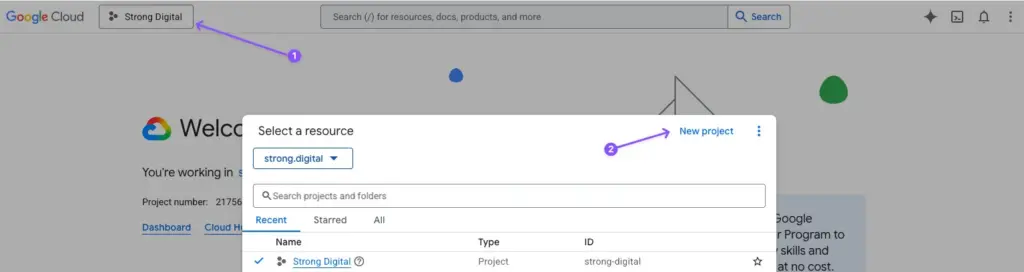
Use one project per client site. Billing, usage, and quotas are scoped to the project.
Step 2: Enable Billing
Google requires a billing account before any Maps API returns real data. Most small business sites stay within the free monthly usage cap.
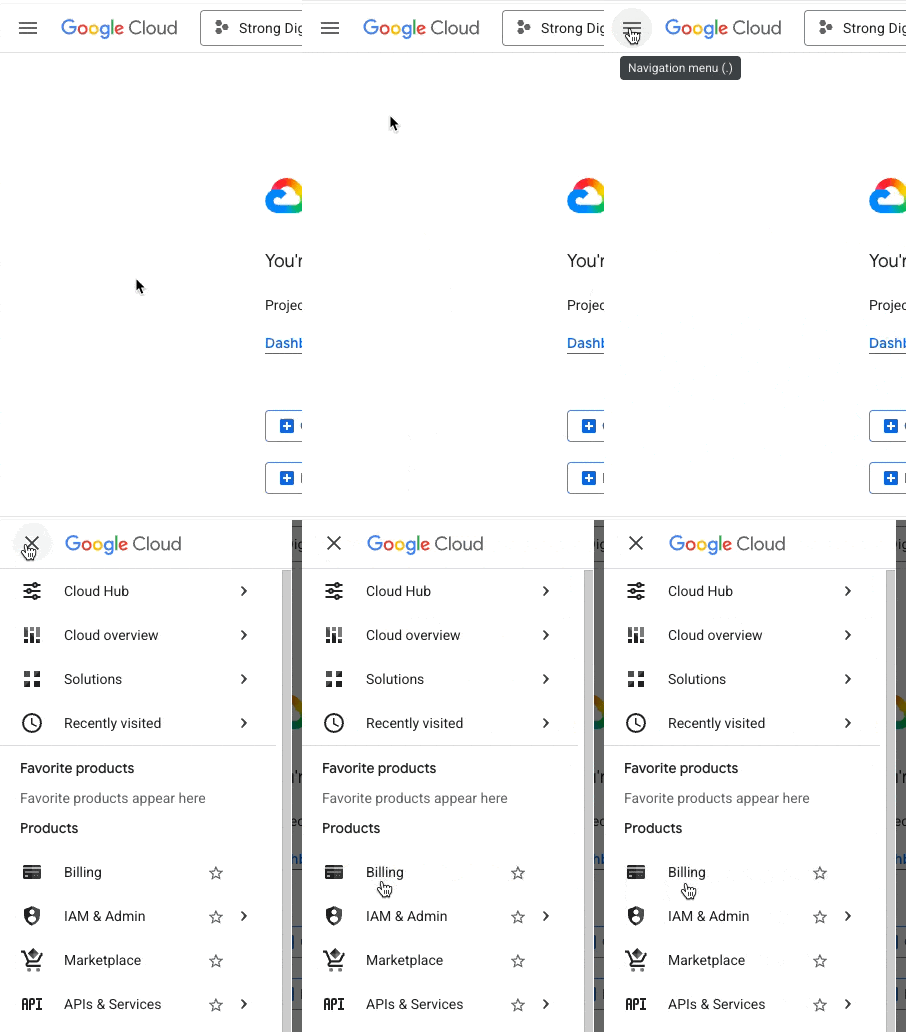
- In the left sidebar, click Billing.
- If you have no billing account, click Create account, enter your card and business details, and accept the terms.
- If you already have one, click Link a billing account and select it.
Set a Budget Alert
- Open the billing account.
- Click Budgets & alerts > Create budget.
- Set a monthly cap (even $20 works as a tripwire) and save.
Step 3: Enable the APIs You Need
An API key does nothing until you enable specific APIs on it.
- In the sidebar, go to APIs & Services > Library.
- Search for each API you need and click Enable.
The common APIs for a website:
- Maps JavaScript API: interactive maps you can pan and zoom.
- Maps Embed API: simple iframe embeds. Free at any volume.
- Geocoding API: converts addresses to lat/lng coordinates.
- Places API: address autocomplete and place details.
Only enable what the site actually uses.
Step 4: Create the API Key
- Go to APIs & Services > Credentials.
- Click + Create credentials > API key.
- Copy the key from the popup and store it in a password manager.
- Click Edit API key (or open the key from the Credentials list).
- Rename it to something descriptive, e.g. Acme Co. website map.
Do not deploy the key to the site yet. Restrict it first (next step).
Step 5: Restrict the Key
Restrictions stop the key from working if someone copies it off your site. Set both an application restriction and an API restriction.
Application Restriction (Front-End Key)
- Under Application restrictions, select Websites.
- Click Add and enter the domains the key is allowed on:
*.yoursite.com.au/*(all subdomains)yoursite.com.au/*(root domain)localhost/*and127.0.0.1/*only if a developer needs local testing (remove once live)
Application Restriction (Server-Side Key)
For keys used in server-side code (e.g. a Laravel app calling the Geocoding API), select IP addresses and add the server’s IP. Use a separate key for front-end and server-side use.
API Restriction
- Under API restrictions, select Restrict key.
- Tick only the APIs you enabled in Step 3.
- Click Save.
Restrictions can take a few minutes to propagate. If the map breaks straight after saving, wait five minutes before troubleshooting.
Step 6: Set Per-API Quota Caps
Quota caps stop a runaway bill if your key leaks or a bug loops requests.
- Go to APIs & Services and click into each enabled API.
- Open the Quotas & System Limits tab.
- Edit the daily request quota and set it a few times higher than your expected daily usage.
- Save the change.
Once the cap is hit, the API stops responding for the day. That is better than waking up to a $4,000 invoice.
Step 7: Add the Key to Your Website
Paste the key into wherever the site loads Maps: a plugin settings page (Elementor, WP Google Maps, Advanced Custom Fields), a theme settings field, or directly into the script URL. Save, clear cache, and load the page that uses the map.
Ongoing Maintenance
Monthly: check the billing dashboard for unusual spikes.
If the key is exposed (pushed to a public repository, published on the website frontend, leaked by a contractor): create a new key with the same restrictions, update the site, and delete the old key from the Credentials page.
Need Help?
Setting up Google Cloud, billing, and API restrictions correctly is the kind of thing we handle as part of our website management service. Get in touch if you would like us to take care of it.
Share To

Written ByNick Marden
Nick is the founder of Strong Digital. He’s been building websites since dial-up – starting in his bedroom in 1999, back when HTML felt like magic. These days, he leads the team at Strong, helping businesses grow with smart strategy, solid tech, and websites that actually pull their weight. Read more by Nick.